
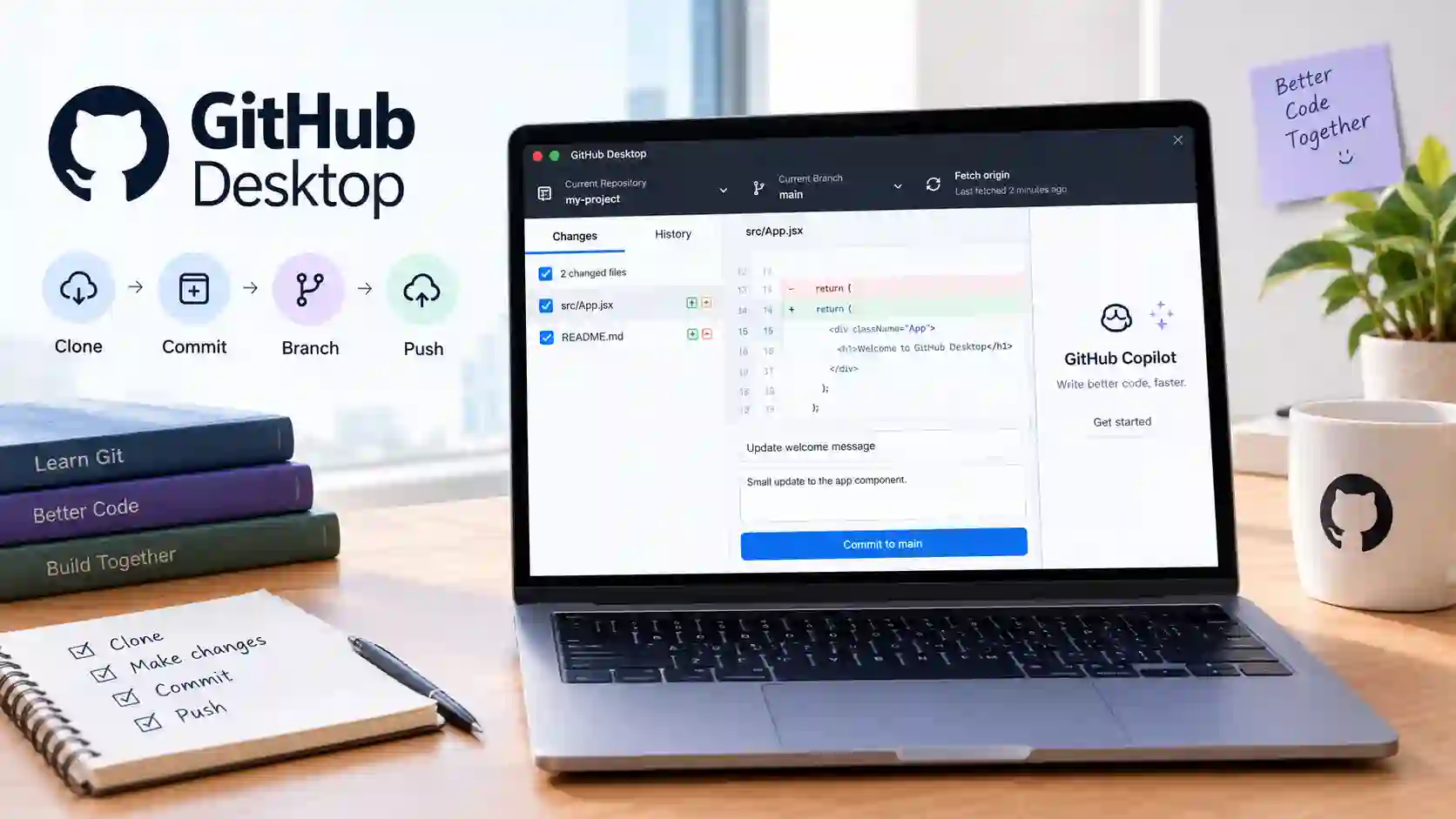
Many new coders freeze the moment they open a terminal. Git commands look strange, and one wrong line can break a project. Files pile up, versions get mixed, and teamwork turns messy fast. For this reason, GitHub Desktop has become a favorite tool for people who want version control without typing every command. This free app turns hard Git tasks into simple clicks.
This guide explains how the app works from start to finish. It covers installation, the daily workflow, branches, and the new Copilot tools in version 3.6. Along the way, readers will also see how developers share fun projects, such as games hosted on GitHub. By the end, anyone can push a first commit with confidence.
What Is GitHub Desktop and Why Does It Matter?
The app is a free graphical client from GitHub. It lets people manage Git repositories without memorizing commands. Instead of typing, users click buttons to clone, commit, and push code. It connects directly to GitHub.com and GitHub Enterprise accounts. Because of this, the setup feels smooth for beginners. Teams also like it, since everyone sees the same visual history of changes.
The project is open source, which means anyone can inspect its code. That openness builds trust. Moreover, the tool gets frequent updates. Release notes from 2026 show steady fixes and new features. For example, version 3.5.7 added a Signed-off-by option for teams that follow Developer Certificate of Origin rules.
Git, GitHub, and the App: What Is the Difference?
Git is the version control system that runs on a computer. GitHub is the website that stores repositories online. The desktop app sits between them as a friendly screen. It runs Git commands in the background, so users rarely touch the terminal. As a result, beginners learn the logic of version control first. Later, they can pick up the commands at their own pace.
Who Benefits Most from This Tool?
Students gain the most because the interface removes early fear. Designers and writers benefit too, since the app shows image changes visually. Small teams enjoy clear history and easy syncing. Even experienced developers use it for quick reviews. In short, anyone who wants a calmer Git routine can save time with a graphical client.
Is GitHub Desktop Free to Use?
Yes, the app itself is free to download and use. However, the new Copilot-powered features need access to GitHub Copilot. Plan costs, AI credits, and any bring-your-own-key provider fees are separate. Therefore, readers should not assume every feature is free. The core Git workflow, though, costs nothing at all.
How to Install GitHub Desktop on Windows and macOS
Installation takes only a few minutes. The official app supports Windows and macOS. Linux users can try a community-supported build, but GitHub does not maintain it. Because of this, most Linux developers still prefer the terminal. Anyone on Windows or macOS should always download from the official download page. That habit avoids fake installers and keeps the computer safe.
Before starting, create a free GitHub account. The app needs it to sync repositories and settings. Next, check that the computer meets the basic requirements. After installing, the app opens on its own and asks for a sign-in. Then it guides new users through a short welcome screen. From there, the real work can begin.
System Requirements to Check First
Windows users need a 64-bit system, and Windows 10 or later works best. Mac users need a recent macOS version supported by the current release. A stable internet connection helps during sign-in and syncing. In addition, a code editor such as Visual Studio Code makes editing easier. The app detects many installed editors automatically, which saves setup time.
Step-by-Step Download and Setup
Follow these simple steps to install the app:
- Visit the official download page and pick Windows or macOS.
- Run the installer, or drag the app into the Applications folder on a Mac.
- Choose whether to share usage data when asked.
- Launch the app and wait for the welcome screen.
- Select the sign-in option to continue.
Signing In and Setting a Git Identity
After launch, sign in with a GitHub or GitHub Enterprise account. The browser then asks users to authorize the app. Once approved, repositories and settings sync automatically. Next, open the settings menu and enter a name and email. On Windows, this lives under File and Options. On a Mac, it sits under the app menu. Every commit will carry this identity.
The Daily Workflow: Clone, Commit, and Push in GitHub Desktop
Most daily work follows a simple loop. First, bring a repository to the computer. Second, edit files in any editor. Third, review the changes and save them as a commit. Finally, send the commit to GitHub. This loop stays the same for solo projects and large teams. Therefore, learning it once pays off for years.
The app makes each stage visible. A changes list shows which files were edited. A diff panel shows exactly which lines changed. Because of this clarity, mistakes are easy to spot before saving. Moreover, new users build good habits early. Small, clear commits make projects easier to understand and easier to fix later.
Cloning a Repository to Your Computer
Cloning copies a repository from GitHub to the local drive. Users can pick one from their account list or paste a repository URL. They can also create a new repository from scratch, which exists locally and on GitHub. New repositories default to the main branch unless changed. After cloning, the project appears in the app and is ready for edits.
Reviewing Changes and Making a Commit
Open the project in any editor and save some changes. Back in the app, the changes list updates right away. Click a file to see its diff. Image changes appear side by side, which helps designers a lot. Then write a short summary, add a description if needed, and click commit. The app can also add a Co-authored-by line, so teammates get proper credit.
Pushing and Pulling Changes
A commit stays on the local computer until it is pushed. Click the Push origin button to send it to GitHub. Teammates can then see the work. Likewise, use Fetch origin to check for new updates from others. If changes exist, pull them before starting new work. This routine prevents most conflicts and keeps everyone in sync.
Branches, Merge Conflicts, and Worktrees Made Simple
Branches let developers work on ideas without touching the main code. Think of a branch as a safe copy for experiments. If the idea works, it gets merged back. If it fails, the branch can be deleted. This approach protects the main project. As a result, teams can build features at the same time without stepping on each other.
Conflicts happen when two people edit the same lines. They are normal and not a sign of failure. The app warns users and points to the affected files. Meanwhile, newer releases add tools that reduce the pain of parallel work. Version 3.6, for instance, introduces worktrees and AI-assisted conflict help. Both ideas aim to keep developers in flow.
Creating and Switching Branches
Use the Current Branch menu in the top toolbar. Select New Branch, type a clear name, and confirm. Switching later takes one click. Good names describe the work, such as fix-login-bug. Furthermore, the rename dialog now checks names against repository rulesets, so invalid names get caught early. This small feature saves frustration on strict team projects.
Resolving Merge Conflicts Step by Step
When a merge hits a conflict, the app lists the files involved. Open each file in the editor and look for the marked sections. Choose which lines to keep, then save the file. Return to the app and finish the merge commit. Always test the code afterward. A conflict that looks solved can still hide a bug.
Using Worktrees for Parallel Work
A Git worktree lets one repository live in several folders at once. Each folder can hold a different branch. Version 3.6 adds a Current Worktree menu beside the repository and branch menus. Consequently, a developer can fix a bug on one branch while a long task runs on another. Nobody has to stash half-finished work first.
GitHub Desktop 3.6 and Its New Copilot Features
On June 26, 2026, GitHub released version 3.6 for macOS and Windows. The official release post says Copilot now has powers to commit authoring and merge conflict resolution. These features run on the Copilot SDK. Every Copilot feature in the app also includes a model picker. Thus, users can choose from the models available to them through GitHub.
These tools can save time, but they do not replace human review. Generated text can be wrong or too vague. Therefore, developers should always read a suggested commit message before saving it. The same rule applies to conflict fixes. Treat the AI as a helpful assistant, and keep the final decision in human hands.
Smarter, Customizable Commit Messages
Commit message generation is now more powerful and easier to customize. The app reads the staged changes and drafts a summary. Users can switch models through the picker and adjust the result. This helps teams that want consistent message styles. However, a quick edit is still wise. Short, accurate messages make history far easier to search.
AI-Assisted Merge Conflict Resolution
The new conflict workflow explains what clashed and suggests a fix. Beginners gain a clear starting point, while experts save repetitive work. Even so, generated files and tricky logic need a careful look. Run tests after accepting any suggestion. In practice, the best results come from combining AI hints with solid knowledge of the code.
Costs and Limits to Know Before Using Copilot Tools
The app stays free, yet Copilot features require Copilot access. Plan fees, AI credits, and any bring-your-own-key costs are separate. Teams should check their plan before relying on these tools. Likewise, they should test the workflow on a small project first. That habit prevents surprise bills and unwanted changes in important repositories.
Tips, Troubleshooting, and Alternatives
A few habits make the app even better. Commit often, write clear messages, and pull before pushing. Keep each commit focused on one idea. Moreover, learn a handful of shortcuts over time. These small steps turn a basic tool into a smooth daily routine. Experienced users say the biggest gains come from consistency, not fancy features.
Problems can still appear, and most have easy fixes. Updating the app solves many odd bugs. For instance, version 3.6.3, released July 15, 2026, fixed an error that blocked Copilot features on Windows. When trouble continues, check the sign-in status and the Git identity. Then restart the app. If needed, compare settings with the global Git config.
Time-Saving Tips for Everyday Use
These quick habits help most users:
- Launch the app from the command line by typing github followed by the repository path.
- Pick a default editor so files open with one click.
- Use clear branch names that match the task.
- Review every diff before committing.
- Fetch often to stay current with teammates.
Fixing Common Problems Fast
If a push fails, fetch and pull first. A rejected push usually means someone else updated the branch. If sign-in breaks, log out and authorize the app again. When Copilot features misbehave, install the latest update. Finally, make sure the commit identity matches the GitHub account. Mismatched emails can hide contributions from the profile graph.
Other Git Clients and AI Terminal Tools
The app is not the only option. GitKraken Desktop, for example, added an AI conflict resolution preview in June 2026. Some developers prefer the terminal, where assistants such as Claude Code CLI can help with commands and code. Many teams mix tools. A visual client suits reviews, while the terminal suits automation. Choose whichever fits the task.
Frequently Asked Questions
What is GitHub Desktop used for?
It is used to manage Git repositories through a visual interface. Users can clone, commit, branch, and push code without typing commands. It works with GitHub.com and GitHub Enterprise.
Is GitHub Desktop free?
Yes, the app is free to download and use. Copilot-powered features need GitHub Copilot access. Plan and credit costs are separate.
Does GitHub Desktop work on Linux?
GitHub officially supports Windows and macOS. A community-supported Linux version exists, but GitHub does not maintain it. Linux users may prefer the command line.
Do I need a GitHub account to use it?
Yes, a GitHub or GitHub Enterprise account is needed to sign in and sync repositories. Creating an account is free. Signing in also links commits to the right profile.
How do I clone a repository?
Open the app, choose to clone a repository, and pick one from the list or paste its URL. Select a local folder and confirm. The project then appears in the app.
What does the Push origin button do?
It sends local commits to the remote repository on GitHub. Until then, commits exist only on the computer. Teammates cannot see them before the push.
What is new in GitHub Desktop 3.6?
Version 3.6 adds Git worktree support. It also adds Copilot-powered commit authoring, a model picker, and AI-assisted merge conflict help. It launched on June 26, 2026.
Is the command line still worth learning?
Yes, because it offers more control and supports automation. Many developers use both tools together. The app makes a gentle starting point, and the terminal grows skills later.
Final Thoughts
This tool makes Git friendlier without hiding how version control works. It handles cloning, committing, branching, and syncing through clear screens. Version 3.6 adds worktrees and Copilot help, which speed up modern workflows. Still, human review matters most. With steady habits, anyone can use GitHub Desktop to build cleaner and safer projects.
Ready to start? Download the official app, sign in, and clone a small test repository today. Make one tiny change, commit it, and push it to GitHub. That single loop builds real confidence. Keep exploring more practical tech guides on this site to level up your skills.